Table of contents
Restaurants installed more self-ordering kiosks in the year ending June 2025 than at any point before it, over 75,000 worldwide, according to Datos Insights, pushing the global installed base to roughly 450,000 terminals. That pace means a lot of restaurants are handing customers a screen instead of a cashier, often without anyone training either side on how to use it well.
Most people who land on this guide fall into one of two groups: a customer standing in front of a kiosk, unsure how to order, or a restaurant owner trying to set one up and get their staff comfortable with it. This guide covers both, because the two are connected. A kiosk only works as well as the people relying on it, on both sides of the counter, understand it.
Key insights
- A kiosk order follows the same core steps everywhere: browse the menu, customize, pay, and get a pickup number. Knowing the flow in advance is what makes a kiosk faster than waiting in a cashier line, not just different from it.
- On the back end, an order placed at the kiosk should land on your kitchen display and in your order management system automatically. If it doesn't, that's a setup problem, not a kiosk problem.
- Kiosk installs are growing fast (75,000+ delivered globally in the year to June 2025), which means getting placement, staff training, and kitchen integration right matters more now than it did even a year ago.
- Most of what gets blamed on "the kiosk" is actually a training or setup gap. Restaurants that pair kiosks with a hybrid staffing model, not a fully unattended one, report fewer order mismatches and smoother pickup.
How does a kiosk machine work?
A restaurant kiosk is a self-service touchscreen where a customer places their own order instead of telling it to a cashier. Behind the screen, it functions like a point of sale system built for one purpose: guests order and sometimes pay entirely on their own, and that order flows into the same kitchen and reporting systems as every other order channel.

How to use a self-service kiosk to order
From a customer's side, the flow is largely the same across most restaurant kiosks:
1. Start the order. Tap the screen to wake it up, and choose an order type if asked (dine-in, takeout, or delivery pickup).
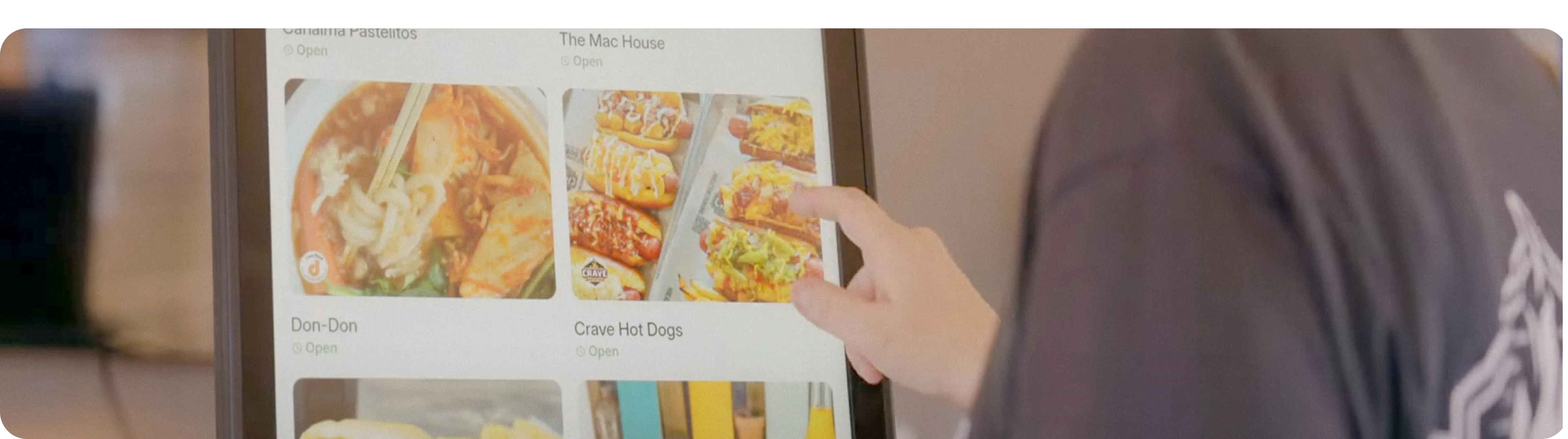
2. Browse the menu. Categories and items usually appear with photos, which is deliberate: customers order more confidently when they can see what they're getting.
3. Customize the item. Add or remove ingredients, pick a size, or choose sides before adding it to the order.
4. Review the upsell prompts. Most kiosks will suggest an add-on (a drink, a side, a larger size) before checkout. This isn't a glitch, it's a deliberate feature, and it's a large part of why kiosks tend to increase average order size.
5. Add contact info if asked. Some restaurants collect a name or phone number here, usually to call out the order or to enroll the guest in a loyalty program.
6. Pay. Tap, insert, or swipe a card at the built-in reader.
7. Take the pickup instructions. The screen will show an order number or a wait estimate, and note where to watch or listen for the order to be called.
If a step doesn't appear (no order-type prompt, no upsell screen), it usually means that restaurant has that feature turned off, not that anything is broken. The flow also shifts a little by format, a quick-service counter and a fast-food drive-up window configure kiosks differently, which Otter's fast food kiosks guide covers in more detail.
What happens after you order on a kiosk
Once a customer taps pay, the order doesn't sit on the kiosk, it's sent immediately to the kitchen through a kitchen display system, the same screen-based ticket system that receives orders from the register, delivery apps, and online ordering. That's the part worth understanding as an operator: a kiosk isn't a separate parallel operation, it's another door into the same kitchen queue. A connected order management system is what keeps a kiosk order, a delivery order, and an in-person order from turning into three different workflows for your kitchen to track separately.
Otter's guide to restaurant kiosks for order management goes deeper on getting that piece right.
How to set up a kiosk in your restaurant
Choosing where to put it, and which size
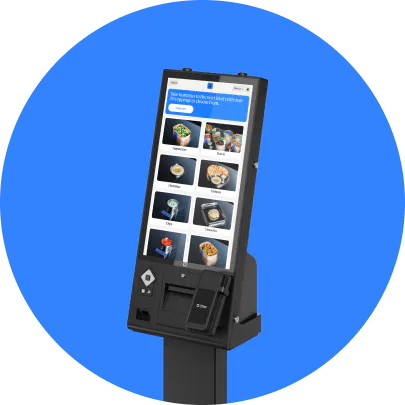
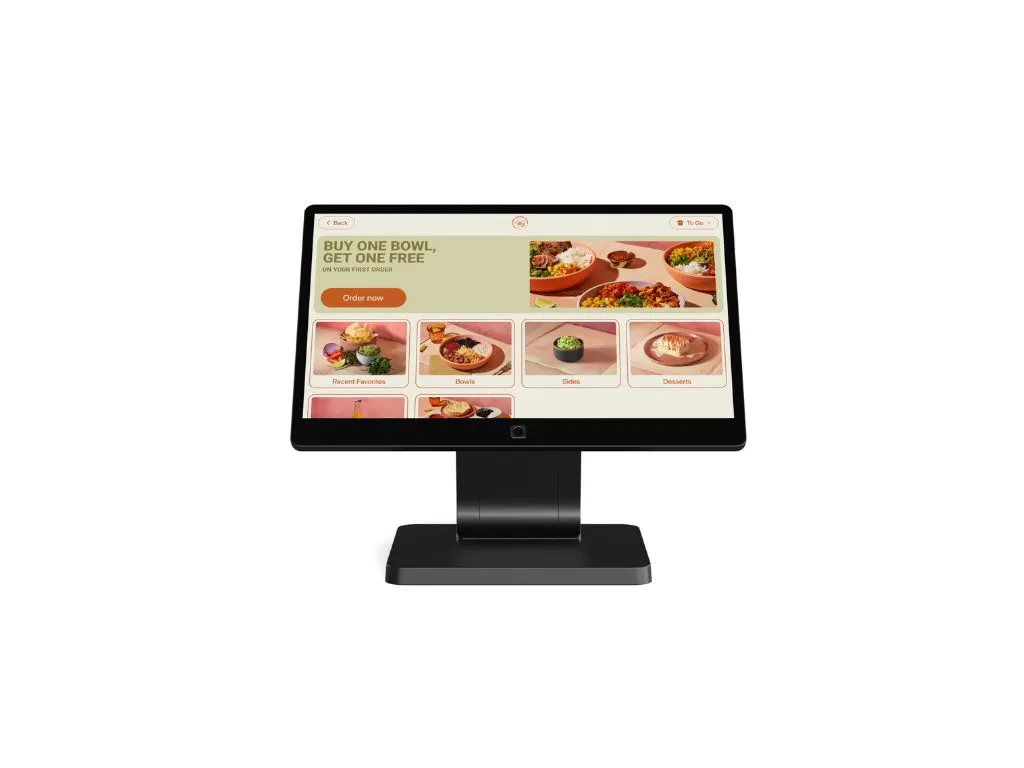
Kiosk hardware generally comes in a few screen sizes, a compact countertop model for tighter spaces, a mid-size standing unit for most quick-service layouts, and a larger flagship size for high-traffic counters where visibility from a few feet away matters. Placement matters as much as size: a kiosk tucked in a corner gets used far less than one a customer sees the moment they walk in. Otter's breakdown of what self-service kiosks actually cost covers the price differences between these tiers if budget is what's driving the size decision.
Installation and initial setup
Most restaurant kiosks, including Otter's, ship with an installation kit and are built to be set up without an on-site technician visit. That said, menu structure, upsell prompts, and order-type options all need to be configured before the kiosk goes live, not left on default settings, since a poorly organized menu on a kiosk is slower for customers to use than a cashier would be. Otter's Kiosk product page has current specs on the available sizes and what's included.
Connecting it to your kitchen and payments
A kiosk that isn't properly connected to your kitchen display and payment processor creates the exact confusion it's supposed to eliminate, tickets that don't print, payments that don't reconcile, or menu items that are still shown as available after they've sold out on every other channel. This connection point is worth testing thoroughly before opening day, not just trusting that it works because the screen turns on.
Training your staff to work alongside the kiosk
A kiosk changes what your front-of-house staff do, it doesn't remove the need for them. The most common setup mistake is treating a kiosk as a replacement for staff attention rather than a redirection of it.
“The customer can place their order on the kiosk, but after that transition, from placing the order to checking out the vibes, having customer service from front of house, that's where we really connect with our customers.”
Attribution: Scott, co-owner, Bred Hot Chicken, Costa Mesa and San Juan Capistrano, CA (verbatim, from the testimonials database)
In practice, that means training staff to watch for customers who look confused at the screen, to jump in quickly rather than waiting to be waved over, and to treat the time a kiosk frees up as time to spend on the parts of service a screen can't do. If you're still building the case internally for why a kiosk is worth this setup effort, Otter's rundown of the benefits of self-service kiosks lays out the data.
Common kiosk problems and quick fixes
Sales from the kiosk, register, and online don't match
This almost always means the channels aren't reporting into one place. If a kiosk's sales sit in a separate report from your register and online orders, reconciling them by hand is where the mismatch creeps in. Analytics that combines every channel into one dashboard is the fix, not a manual spreadsheet at the end of the night.
Kiosk orders aren't reaching the kitchen
Check the kiosk's connection to the kitchen display first, this is the single most common point of failure. If the kiosk and the kitchen screen are running through different systems rather than one connected setup, an order can process a payment successfully while never printing or displaying in the kitchen at all.
Do I need separate systems for the kiosk, POS, kitchen display, and payments?
No, and if it feels that way, that's a sign the systems weren't set up to talk to each other. A kiosk, a register, a kitchen display, and payment processing should all run on one connected platform so an order placed anywhere shows up the same way everywhere else, not as four systems that each need to be checked separately.
What happens to the kiosk if the internet goes down?
This is worth planning for honestly rather than assuming it won't happen: Otter's Kiosk does not currently have offline mode, so it can't take orders during an internet outage. If uninterrupted order-taking during an outage matters to your restaurant, that capability currently lives on Otter's POS terminal, not the kiosk, so a backup plan (a staffed register, a paper fallback) is worth having regardless of which kiosk vendor you use.
Set it up once, and it keeps paying you back
A kiosk that's placed well, configured properly, and backed by staff who know how to support it does two things at once: it moves lines faster and it tends to increase what customers spend, Otter's own kiosk data shows upsell prompts driving up to 30% higher check sizes. Get the setup right the first time and most of the day-to-day “how do I use this” questions disappear on their own. Book a demo with Otter to see the Kiosk in action.
Frequently asked questions about using a kiosk machine
How long does it take to learn to use a kiosk machine?
For customers, ordering on a well-designed kiosk takes about the same amount of time as ordering with a cashier, often less once someone has used one before. For staff, learning to configure and troubleshoot a kiosk typically takes a shift or two of hands-on use, not a lengthy training program.
Is a self-service kiosk hard to use for customers?
Not for most people. The biggest usability factor isn't the technology, it's menu organization: a cluttered menu with too many categories is what actually slows customers down, not the touchscreen itself.
Do I need an internet connection to run a kiosk?
Yes, for the kiosk itself. A stable internet connection is required for the kiosk to process orders and payments and to sync with the kitchen and reporting systems in real time.
Can a kiosk work with my current POS system?
That depends on the vendor. Some kiosks are built to run only on their own platform's POS, while others are designed to plug into a restaurant's existing system. Otter's guide to the best self-ordering kiosk systems breaks down which vendors require their own POS and which don't.
What happens if a customer needs help at the kiosk?
A staff member should be positioned within sight of the kiosk at all times, not necessarily standing next to it, but close enough to notice hesitation and step in within a few seconds. Restaurants that place kiosks out of staff sightlines see more abandoned orders.

Launch your kiosk with Otter